SMS delivery depends on the selected gateway, a valid recipient and sufficient balance for the message segments. CENTRANET separates platform credits from an independently configured provider balance. Use this guide to prepare a message and understand what a send result actually confirms.
Before you start
Open /messages in the workspace you intend to manage. The workspace name determines which routers, subscribers and records you can see. These screenshots use Acacia Internet, a fictional training workspace. Names, phone numbers, addresses, account counts and money shown are demonstration data; do not copy them into a live customer record. Your available controls depend on your role, plan and configured integrations.
1. Check the active SMS mode and balance
Read the balance strip on the dashboard or open Settings → SMS. Platform mode uses workspace SMS credits. Own-gateway mode uses the configured provider and may display a provider-observed or manually recorded balance with its source. Unused platform credits can remain visible even when an external provider is selected. Check the active mode before purchasing more credits.
2. Recharge through the supported payment flow
In platform mode, choose Recharge SMS and review the available purchase option, quantity and amount. Complete the payment using the configured collection flow. A prompt or pending payment does not yet represent purchased credits. After provider confirmation, refresh the balance and retain the payment reference. If the request is pending, reconcile it before starting another purchase.
3. Compose a clear service message
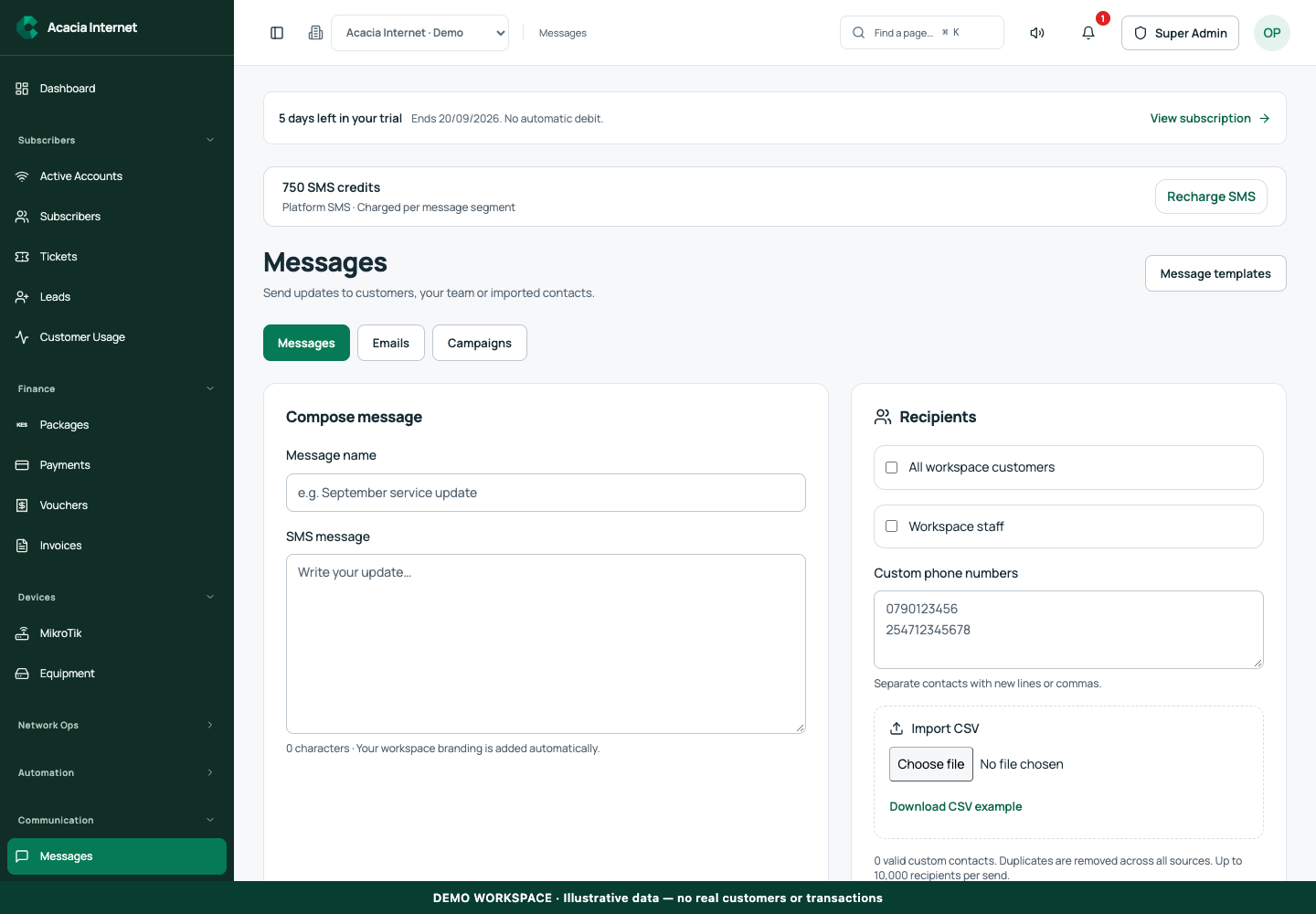
Open Messages, give the message an internal name and write the SMS text. Include the information the customer needs: the affected service, date or action and a useful support contact. Keep the message concise. Long text and some characters can produce multiple SMS segments, so one recipient does not always consume one credit. Review the character and segment information shown before sending.
4. Choose customers, staff or custom contacts
Select All workspace customers or Workspace staff only when that audience is appropriate. For a targeted message, enter custom phone numbers using new lines or commas. Check country codes and avoid guessed numbers. The recipient selector combines supported sources and removes duplicates, but you still need to review whether each contact should receive this particular message.
5. Import and validate a CSV list
Use Download CSV example, keep its expected column names and prepare the file using authorized contacts. Import the CSV and review the valid-recipient count and any rejected entries. Do not upload unrelated customer exports containing passwords, payment secrets or unnecessary personal fields. A clean contact list makes cost estimates and delivery reporting easier to interpret.
6. Review, send and inspect delivery results
Check the final audience, message and balance before submitting. Use the preview or review step when provided. After sending, inspect the recorded status and any failed recipients. Provider acceptance means the message entered the delivery process; it does not prove that every phone displayed it. Retry only failed or unresolved items through the supported workflow, preserving the original send record.
Confirm the result
Confirm the selected gateway was used and that platform credits or the external provider balance reflect the applicable billing rules. Review the actual segment count for long messages. Keep campaign outcomes with the message content and audience so support staff can understand what a customer was told.
Questions and troubleshooting
Why didn’t one SMS reduce the balance by one? It may contain multiple segments or use an external provider rather than platform credits. Why did a recharge not appear? Check payment verification and the original reference. Can every staff member send to all customers? Access depends on role and workspace permissions. Should I keep retrying a pending send? No; inspect the existing attempt and avoid duplicate messages.
Continue with the next task
Continue with campaign audiences and automatic customer notifications.
This guide describes the application reviewed on 15 September 2026. If a screen displays a warning, follow that specific message before continuing. For support, include the workspace, affected record, time of the attempt and the operation reference where available. Never include passwords, router command tokens, payment secrets or verification codes in a public support message.