Customer notifications connect account events to useful messages. They should explain a payment, renewal or service change clearly and reach the right contact through a configured channel. Use the notification settings to review both the words customers see and the rules that decide when those words are sent.
Before you start
Open /notification-settings in the workspace you intend to manage. The workspace name determines which routers, subscribers and records you can see. These screenshots use Acacia Internet, a fictional training workspace. Names, phone numbers, addresses, account counts and money shown are demonstration data; do not copy them into a live customer record. Your available controls depend on your role, plan and configured integrations.
1. Open the four notification sections
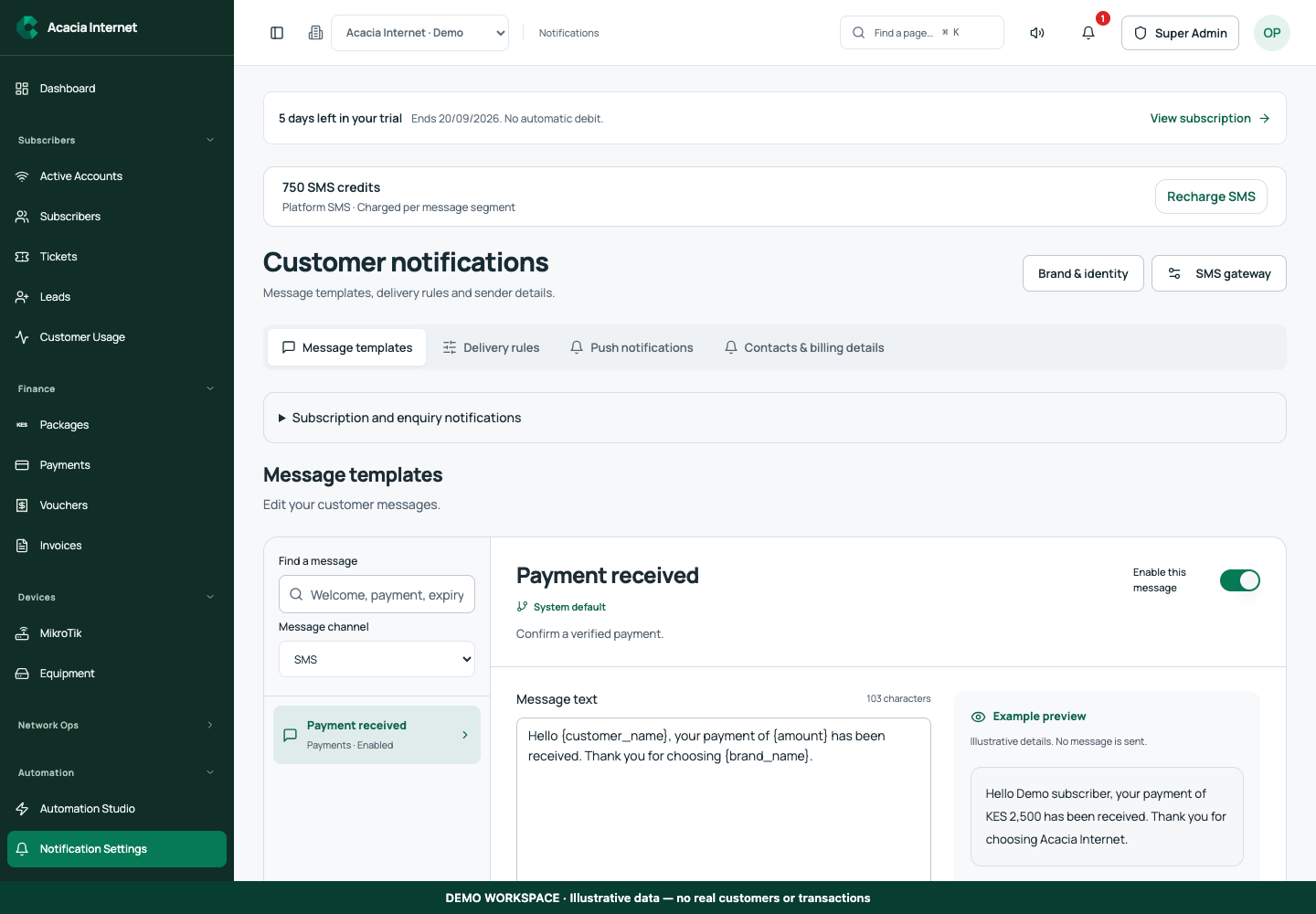
Go to Customer notifications. The view groups Message templates, Delivery rules, Push notifications and Contacts & billing details. Start by reviewing the existing settings rather than changing every switch at once. Confirm the workspace and your management permission. A template can be present while its delivery channel is unavailable, so configuration needs more than editing the text.
2. Review each relevant message template
Open the template for the event you want to improve, such as welcome, payment or renewal communication. Read its subject or SMS text and preserve the supported substitution variables. Replace long explanations with the customer’s next action and a working support contact. Preview with demonstration names and amounts, then check how the message reads when a variable is short, long or absent.
3. Set delivery rules deliberately
In Delivery rules, review which lifecycle messages are enabled and how often they repeat. Avoid overlapping reminders that tell a customer the same thing several times in a short period. Align the reminder timing with your billing cycle and actual support hours. Enabling a rule does not repair missing contact details, a depleted SMS balance or a blocked email sender.
4. Maintain contacts and billing details
Review the customer-facing support contacts and billing information used in messages. Use numbers and mailboxes your team monitors. If a router has separate outage recipients, maintain those in the router’s outage controls as well. A general support contact and a technical escalation recipient serve different purposes and should not be confused.
5. Configure push only with device permission
Use the Push notifications section for the supported browser or installed-app registration process. The customer’s device must grant notification permission. A saved preference in the workspace does not override a browser or operating-system denial. Explain how customers can revisit their device settings if they previously blocked notifications, and keep critical account information accessible in the portal too.
6. Test an event and inspect its delivery record
Use an authorized test account and a supported event to verify the selected template and channel. Confirm the recipient, rendered variables and portal links. Inspect the delivery result rather than assuming a saved template was sent. For SMS, check segment usage; for email, separate transport acceptance from inbox placement; for push, verify the device actually has a valid subscription.
Confirm the result
Your notification setup should have clear templates, non-conflicting rules, working contacts and ready delivery channels. Record which events you tested and on which device or mailbox. When changing a template used by many customers, preview and test it before relying on the next scheduled event to reveal a mistake.
Questions and troubleshooting
Why is an enabled notification not delivered? Check event eligibility, contact validity, sender readiness, balance and the recorded attempt. Can every workspace fully customize white-label templates? Customization depends on the plan and permitted branding controls. Do push messages work on every phone automatically? No; installation, browser support and user permission affect availability. Should customers receive internal diagnostic text? Use plain customer-facing language and keep technical details in staff records.
Continue with the next task
Next read customer portal installation and email sender verification.
This guide describes the application reviewed on 15 September 2026. If a screen displays a warning, follow that specific message before continuing. For support, include the workspace, affected record, time of the attempt and the operation reference where available. Never include passwords, router command tokens, payment secrets or verification codes in a public support message.