The customer portal gives subscribers a dedicated place to manage their internet account. It should show the correct provider brand and only the authenticated customer’s information. Installing the web app adds a convenient phone shortcut and supported app behaviour; it does not create a second subscription.
Before you start
Open /customer-login in the workspace you intend to manage. The workspace name determines which routers, subscribers and records you can see. These screenshots use Acacia Internet, a fictional training workspace. Names, phone numbers, addresses, account counts and money shown are demonstration data; do not copy them into a live customer record. Your available controls depend on your role, plan and configured integrations.
1. Open the provider’s customer login address
Use the portal link supplied by the internet provider or the verified custom domain. Check the hostname before entering account details. A subscriber should not use the staff administration login to manage their own internet service. If the page shows an unexpected business name, return to the provider’s known link and verify that the correct workspace is selected.
2. Complete the supported authentication process
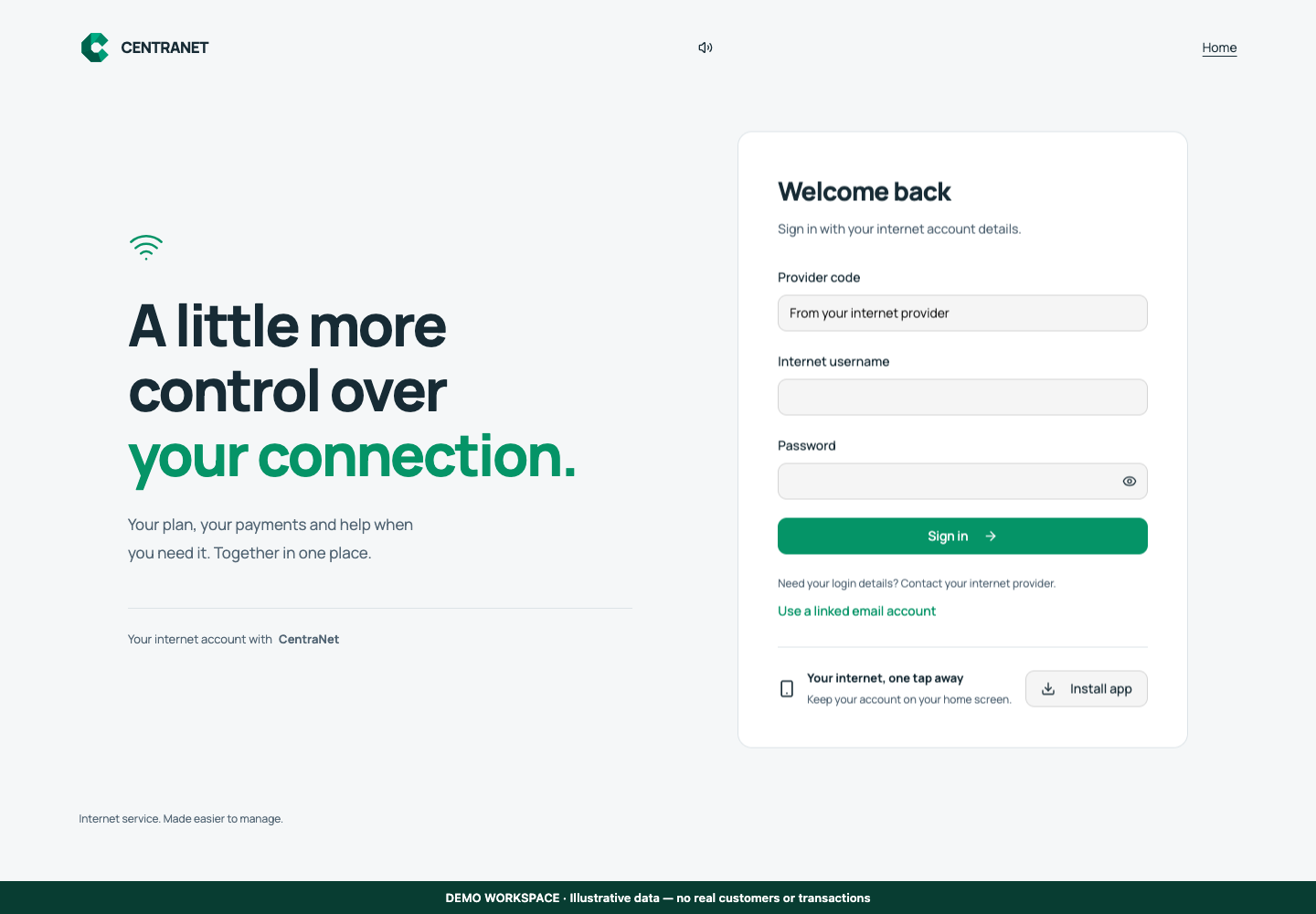
Enter the Provider code supplied by your ISP, your Internet username and Password, then choose Sign in. On a dedicated provider portal, the workspace context may already be supplied. If your email is linked, choose Use a linked email account and follow that separate sign-in process. Registration in the admin workspace does not by itself prove the customer has completed portal verification. Use the real contact attached to the subscriber record and keep OTPs and passwords private. If access fails, ask the provider to check the customer-account link rather than creating unrelated duplicate identities.
3. Review the current subscription and service status
After sign-in, check the package, paid-through date, balance and service information. Distinguish the saved account state from the latest router-confirmed access. A customer can have a recorded renewal while the router is still receiving the update. Use the portal’s status and support path to investigate instead of repeatedly purchasing the same package.
4. Renew, request a package change or redeem a voucher
Use the available subscription action and review the selected package and amount before confirmation. A package request may need further processing; it is not always an immediate invoice or charge. For paid renewal, complete the configured provider flow and retain the reference. For vouchers, enter a compatible unused code and inspect the resulting subscription state.
5. Install the web app on a supported phone
Use the Install app action when the browser offers it, or follow the browser’s Add to Home Screen process where supported. Open the installed icon and confirm the correct provider branding. Installation support differs by browser and operating system. The app still needs a network connection for current account data, payments and most management actions; an icon does not make those services available offline.
6. Enable notifications and know how to get help
Use the portal’s notification control and grant browser or operating-system permission when you want push updates. If permission was previously denied, review the device settings. Keep the account’s phone and email correct for other reminders. Use the customer support or ticket action for account problems, including the time and payment reference where relevant, without sending passwords or payment PINs.
Confirm the result
Complete a real customer sign-in, confirm the subscription belongs to that customer and check the renewal or voucher outcome. On a phone, verify the installed icon opens the intended portal and notification permission is understood. Sign out on shared devices and avoid storing customer credentials in an installer’s personal browser.
Questions and troubleshooting
Does every registered customer automatically have a working portal login? The record, identity link and verification flow must all be correct. Can a customer change any package instantly? Follow the specific request and payment status shown. Why is Install app absent? Browser support and installation state affect availability. Will push replace every SMS? No; each channel has its own configuration and delivery conditions.
Continue with the next task
Continue with voucher redemption and customer notifications.
This guide describes the application reviewed on 15 September 2026. If a screen displays a warning, follow that specific message before continuing. For support, include the workspace, affected record, time of the attempt and the operation reference where available. Never include passwords, router command tokens, payment secrets or verification codes in a public support message.