A router port is not automatically a customer port. The internet uplink, technician management connection and customer access interfaces have different jobs. CENTRANET’s onboarding review makes those assignments visible so that you can prepare Hotspot and PPPoE service without accidentally taking away your own access.
Before you start
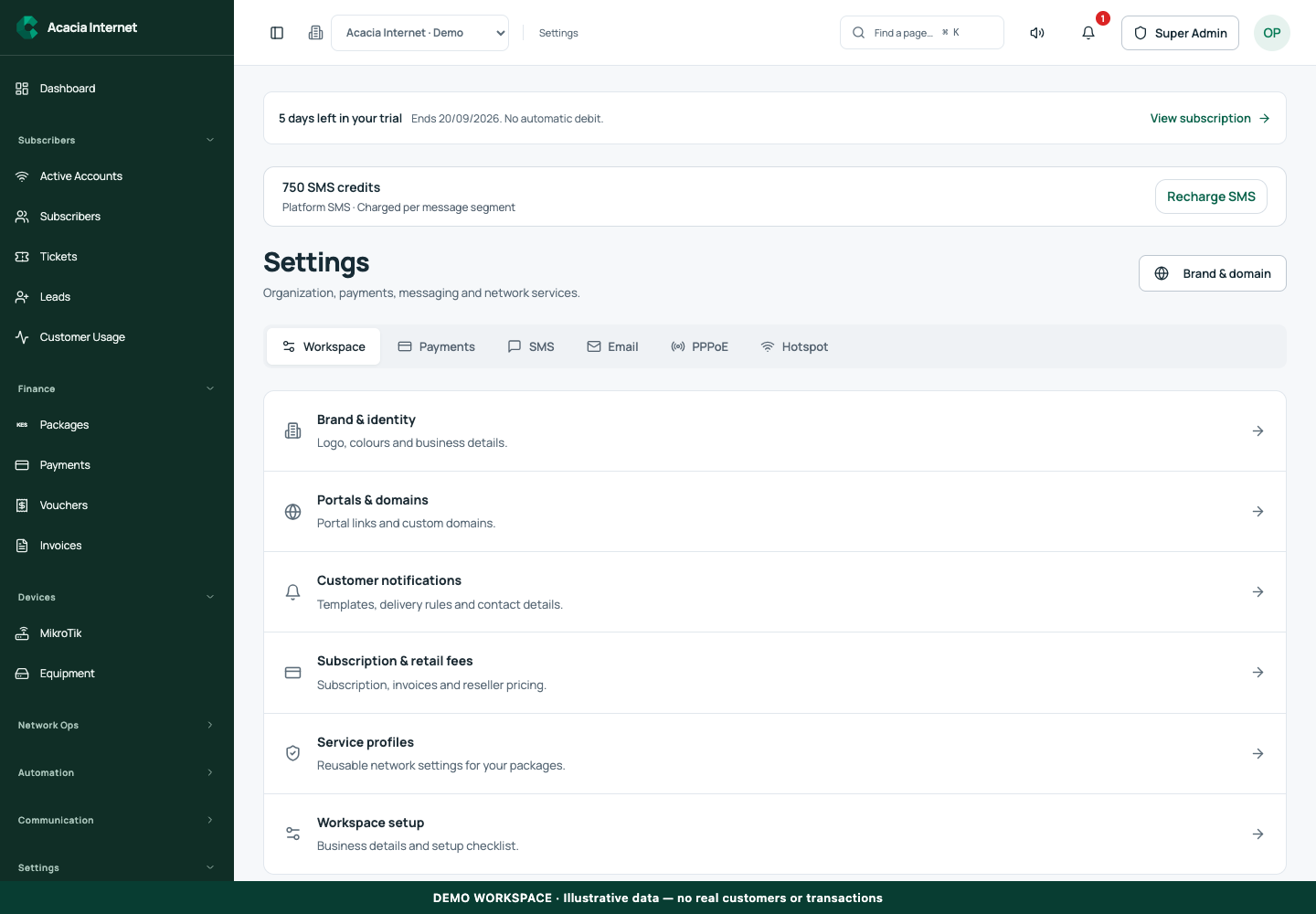
Open /settings?tab=pppoe in the workspace you intend to manage. The workspace name determines which routers, subscribers and records you can see. These screenshots use Acacia Internet, a fictional training workspace. Names, phone numbers, addresses, account counts and money shown are demonstration data; do not copy them into a live customer record. Your available controls depend on your role, plan and configured integrations.
1. Map the cables before changing configuration
Write down which physical port connects to the upstream ISP, which one your technician is using and which ones lead to access points or customer switches. Use the actual interface names reported by the MikroTik. A label such as ether1 is an interface name, not an assurance that every installation uses it for the same purpose. Compare the map with the detected internet connection in setup.
2. Review protected interfaces
Protected interfaces are retained for internet or management connectivity. In a demonstration, ether1 may be the uplink and ether3 a management port, while ether2, ether4 and ether5 serve customers. Those names are examples only. If detection protects a port you expected to use for customers, investigate the live connection first. Do not remove protection merely to make the proposed layout resemble a screenshot.
3. Select the customer service on each intended port
Review the customer network plan and choose Hotspot, PPPoE or the supported combined assignment as appropriate. Hotspot clients use the captive access experience; PPPoE customers establish a subscriber session using their credentials. A combined port does not mean both methods are interchangeable for every client device. The downstream equipment and customer configuration must match the service you sell.
4. Check the proposed customer address ranges
Read the Hotspot and PPPoE subnets displayed by the plan. Keep them separate from the upstream network, management network and any existing routed customer ranges. An address range copied from another site can conflict with local infrastructure. Record the accepted subnets for troubleshooting, but avoid publishing customer network maps in a public support channel.
5. Apply the reviewed plan and wait for device evidence
Submit the reviewed assignment through onboarding. The requested configuration and the router-confirmed result are separate stages. Watch the activity view until verification completes. If a step needs review, inspect its recorded journal and use the supported recovery workflow. Repeating a partially applied network operation without checking progress can leave the operator uncertain about which rules already exist.
6. Test each service through the actual customer path
Test a Hotspot client behind the access point or switch customers will use, not only from the technician port. Confirm the captive portal loads before login. For PPPoE, configure a test client with the assigned subscriber username and password, then inspect the session evidence in the workspace. Finally verify that the management connection and upstream internet remain available.
Confirm the result
Your installation notes should identify the uplink, protected management path, customer interfaces, Hotspot subnet and PPPoE subnet. Confirm a real client on each service and leave unneeded interfaces unassigned until you have a reason to use them. Router assignment on packages must match where those packages are intended to be sold.
Questions and troubleshooting
Why does a client get no login page? Check that it is physically on a Hotspot customer path, has an address and can reach the portal destinations before authentication. Why does PPPoE fail while Wi-Fi works? They use different access mechanisms; inspect the selected service, credentials and session result. Can I change ports later? Use the supported configuration controls with a maintenance plan and verify existing subscribers afterward.
Continue with the next task
Read package router availability and Hotspot portal design.
This guide describes the application reviewed on 15 September 2026. If a screen displays a warning, follow that specific message before continuing. For support, include the workspace, affected record, time of the attempt and the operation reference where available. Never include passwords, router command tokens, payment secrets or verification codes in a public support message.