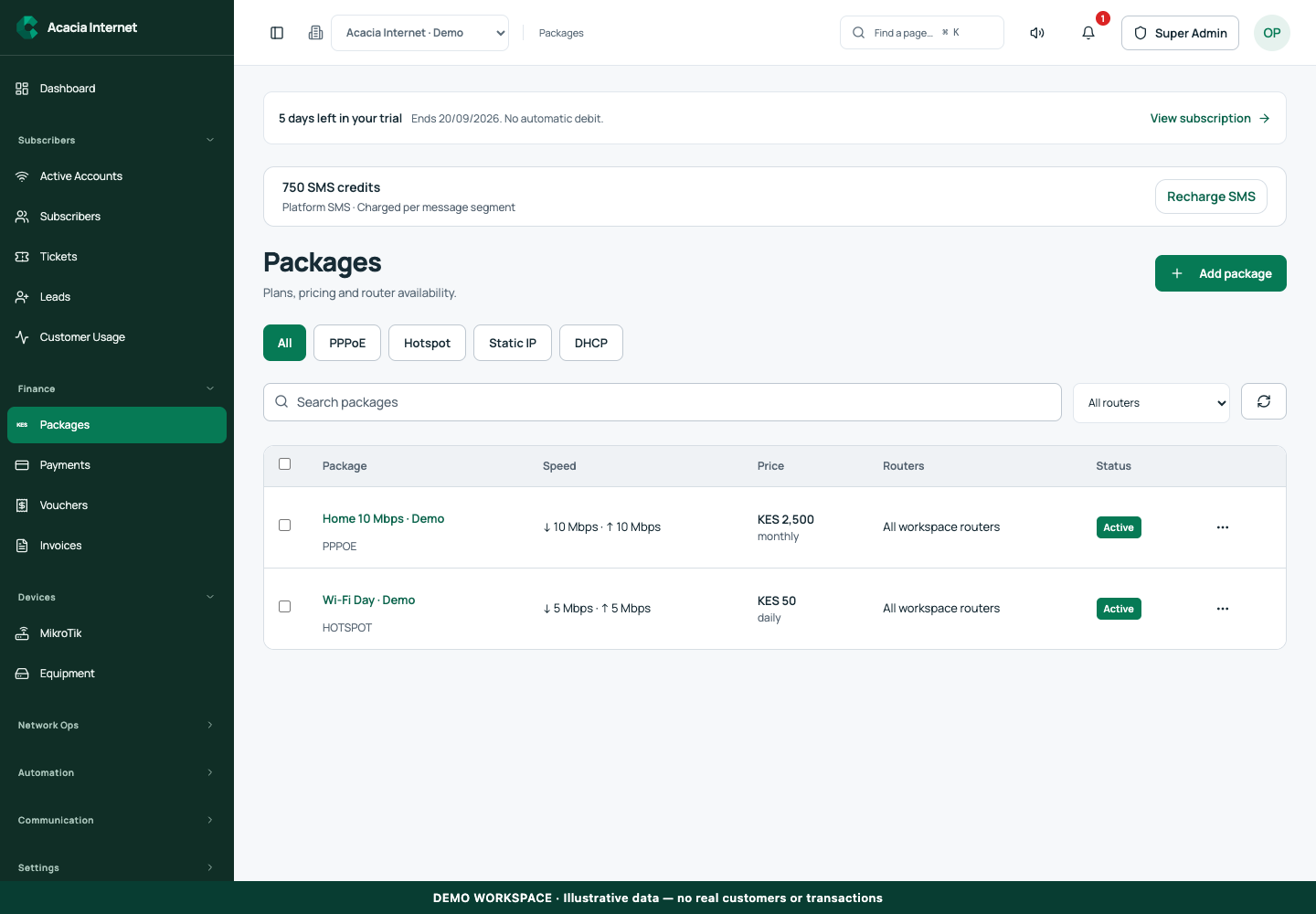
Packages define what a customer buys: service type, speed, duration and price. Router availability determines where that package can be sold or assigned. Keep these decisions together so a package created for one site does not accidentally appear across your whole network.
Before you start
Open /packages in the workspace you intend to manage. The workspace name determines which routers, subscribers and records you can see. These screenshots use Acacia Internet, a fictional training workspace. Names, phone numbers, addresses, account counts and money shown are demonstration data; do not copy them into a live customer record. Your available controls depend on your role, plan and configured integrations.
1. Start a package from blank or a template
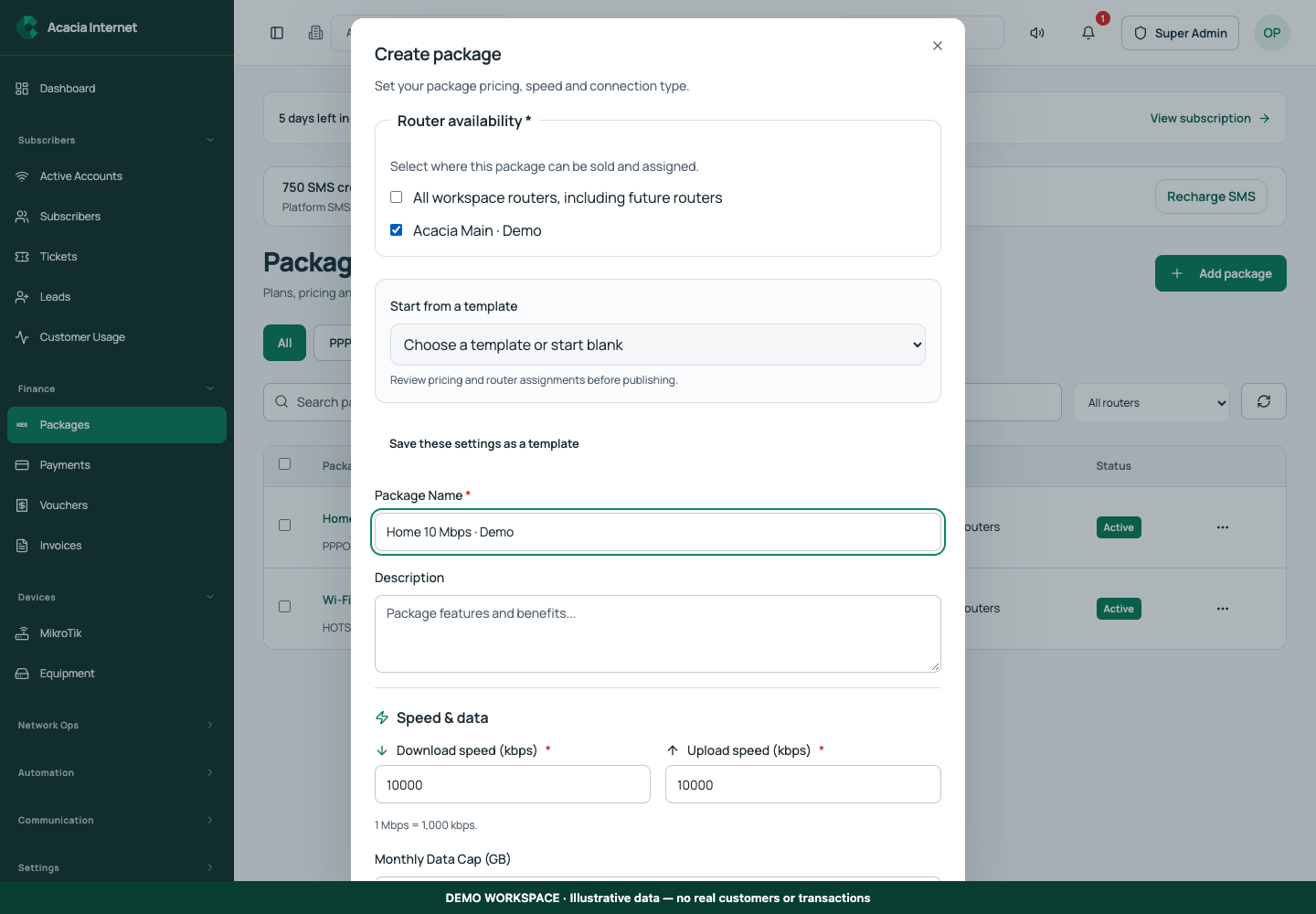
Choose Add package. In Start from a template, select a saved template or leave the form blank. Templates copy starting values and require review; they are not proof that the price or router availability is correct for this site. Use Save these settings as a template when you want to reuse a well-defined configuration later.
2. Choose router availability explicitly
In Router availability, select the intended routers. Alternatively, deliberately select All workspace routers, including future routers. The second choice is broad: a router added later can fall within that availability. For a site-specific offer, select only that site. If no router exists, add one first or intentionally choose the all-workspace option rather than assuming a missing selection will be filled automatically.
3. Set service, bandwidth and validity
Give the package a customer-friendly name and choose its access type. Enter download and upload speed, billing cycle and any supported data allowance. Keep the units shown by the form in mind: a speed cap and a monthly data cap measure different things. A 10 Mbps demonstration package describes transfer speed; a GB allowance describes the amount of data a policy permits.
4. Review the price and publishing controls
Enter the price and tax settings that apply to your business. Our demonstration package price is KES 2,500 and is not a recommended tariff. Check Active package before making it assignable. Hotspot offers also have Publish for Hotspot checkout; activating a package does not necessarily make it a public checkout offer. Review the intended customer-facing description before publishing.
5. Use list filters and bulk actions
Filter by service or router and search by name. Select the visible packages you intend to change, then use Assign routers, Sync to router, Enable, Disable or Delete. Review the selection count before confirming. Bulk actions return individual results, so a partial success does not mean every selected package changed. Keep failed rows visible and investigate their specific reason.
6. Synchronize existing accounts and confirm the router result
Choose Sync to router for the selected package and destination router. This queues updates for existing subscriber accounts using that package on that router. It is not a command to blindly create every package on every device. After applying changes, inspect the operation results and subscriber service evidence. The backend request must be followed by router confirmation before you promise that a speed change is active.
Confirm the result
Filter the package list to the intended router and confirm the offer appears with the correct speed, price, status and router availability. For Hotspot, inspect the actual captive checkout catalogue. For PPPoE, inspect a customer assigned to the package and verify its resulting service configuration after synchronization.
Questions and troubleshooting
Why can’t I delete a package? Customer or voucher history can require retention. Disable it for new sales instead of destroying its history. Why is a package missing for a customer? Check service type, active status and router availability. Does editing a template update existing packages? Treat a template as a starting configuration; review and update the actual packages and accounts through the supported workflow.
Continue with the next task
Next read PPPoE subscriber setup and traffic policies.
This guide describes the application reviewed on 15 September 2026. If a screen displays a warning, follow that specific message before continuing. For support, include the workspace, affected record, time of the attempt and the operation reference where available. Never include passwords, router command tokens, payment secrets or verification codes in a public support message.