Traffic policies help translate an internet offer into a consistent service. They can control speed, data usage and supported access restrictions, but they must be scoped to the correct router and customer or package. A policy saved in the dashboard is not complete until its device effect is verified.
Before you start
Open /packages in the workspace you intend to manage. The workspace name determines which routers, subscribers and records you can see. These screenshots use Acacia Internet, a fictional training workspace. Names, phone numbers, addresses, account counts and money shown are demonstration data; do not copy them into a live customer record. Your available controls depend on your role, plan and configured integrations.
1. Choose the correct policy scope
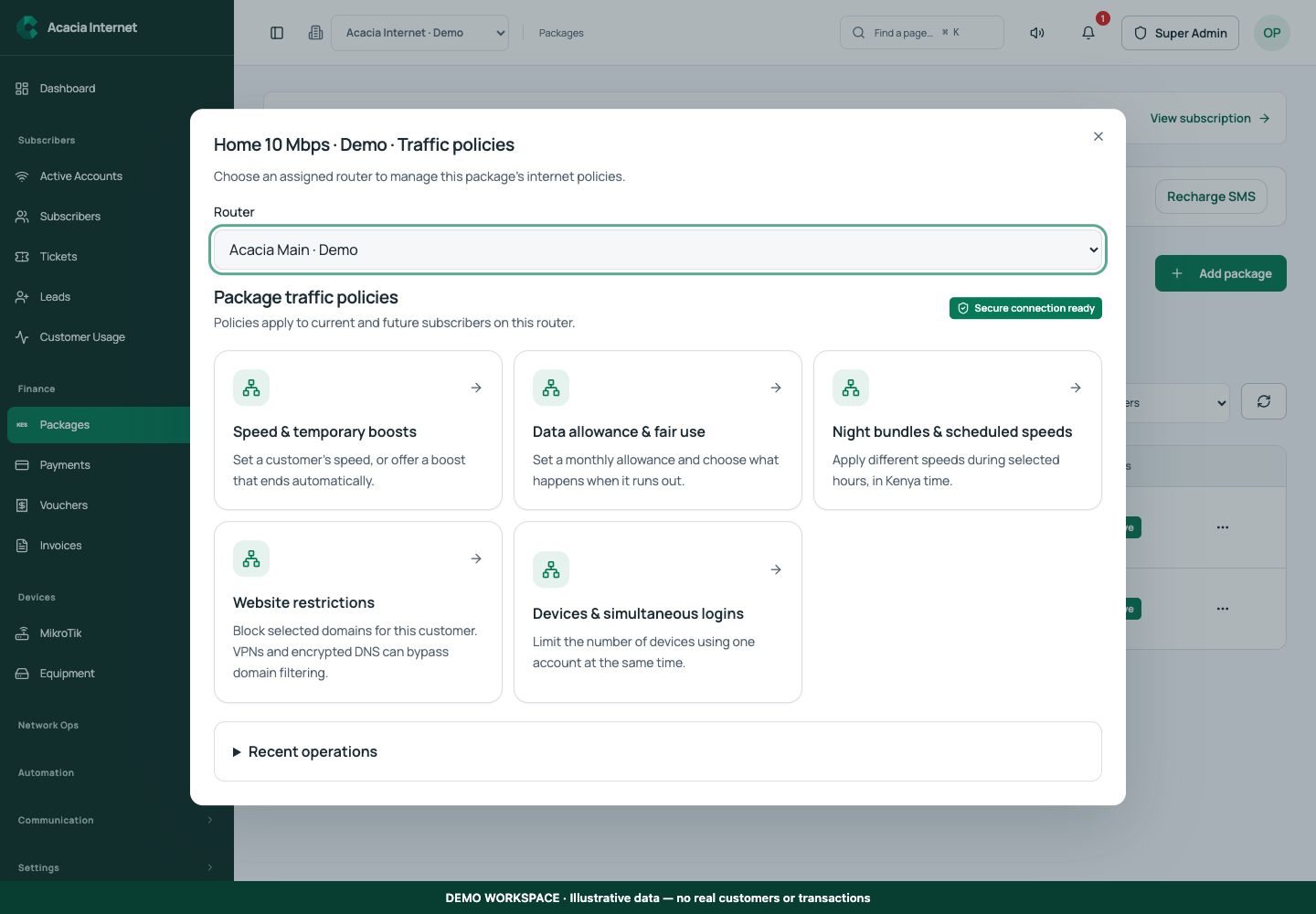
Open Packages and use the package action menu to select Traffic policies, or use the relevant customer or router controls. Choose an assigned router where the interface requests one. A package available on several routers may require reviewing each destination. Do not apply a site-wide policy when your intention is to change one customer’s service.
2. Set speed controls with the displayed units
Choose the supported speed action and enter upload and download values using the units shown. A temporary boost should have an explicit purpose and duration where the control supports it. Check the original package before changing limits. The router’s uplink capacity and customer device conditions still affect actual measured throughput; a configured ceiling is not a guaranteed speed test result.
3. Review data caps and fair-use behaviour
For a data allowance, distinguish the amount of permitted traffic from the speed applied before or after exhaustion. Inspect the supported reset cycle and post-limit action. A package description saying “fair use” is not enough: the actual router policy must match the offer. Test with an authorized account and avoid using real customer traffic to discover an incorrect cap.
4. Use scheduled and website rules carefully
Where supported, configure access schedules or off-peak behaviour using the displayed timezone and interval. For website policies, review the target domains or starting lists and the affected customers. Domain rules cannot guarantee complete category blocking or defeat every VPN or encrypted application. Explain the actual restriction you provide instead of advertising an absolute filtering promise.
5. Review the proposed router changes
Choose Review changes and inspect each proposed step, field and note. Confirm the selected router, interface, package or customer. If the plan includes an unexpected network-wide change, return to the form and correct the scope. A review screen is the opportunity to catch a wrong destination before the operation is submitted to the device.
6. Apply and verify the outcome
Choose Apply & verify, then follow the operation state until the result is available. Inspect Recent operations and the active policy list. Test an affected customer and an unaffected customer where appropriate to confirm the scope. If a job needs review, reconcile its recorded progress before creating a competing policy or repeating the same change.
Confirm the result
The final policy should match the customer-facing offer, be associated with the intended scope and have a verified operation result. Record any limitations of the filtering or scheduling capability. Review overlapping policies after package changes so a previous temporary restriction does not unexpectedly remain in effect.
Questions and troubleshooting
Why is a control unavailable? Router model, agent readiness, installed packages and permissions can affect support. Does a data-cap field alone enforce a cap? Verify the corresponding policy and device result. Can website rules block everything in a category? No; domain-based controls have technical limits. Why is a speed lower than the package ceiling? Check uplink capacity, signal quality, client hardware, congestion and other active policies.
Continue with the next task
Next read package setup and maintenance verification.
This guide describes the application reviewed on 15 September 2026. If a screen displays a warning, follow that specific message before continuing. For support, include the workspace, affected record, time of the attempt and the operation reference where available. Never include passwords, router command tokens, payment secrets or verification codes in a public support message.