Backups are valuable only when you know which router they belong to, when they were taken and how they will be used during recovery. CENTRANET’s router controls distinguish verified recovery copies from a request that is still running. Plan maintenance around that evidence and the effect on paying customers.
Before you start
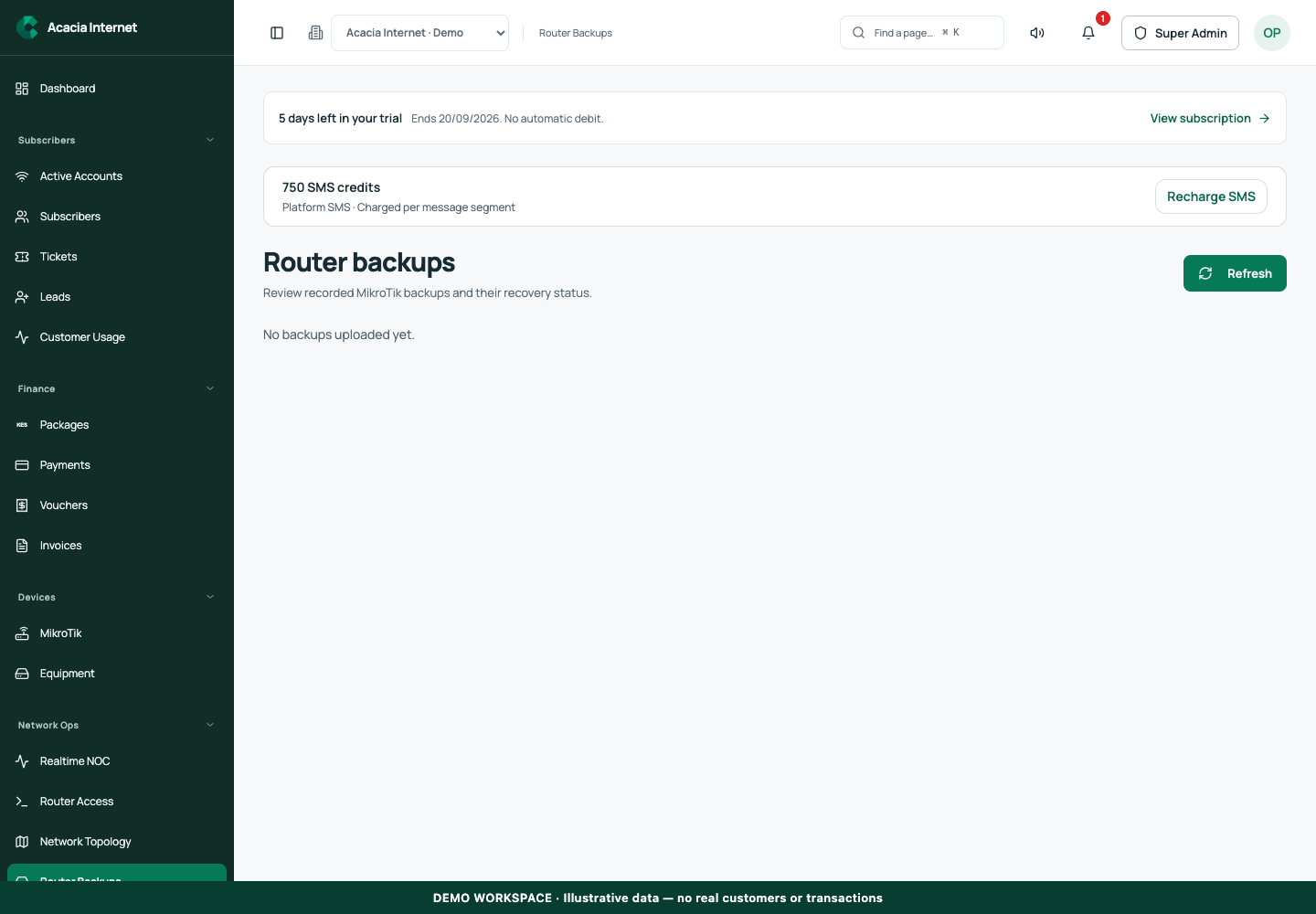
Open /router-backups in the workspace you intend to manage. The workspace name determines which routers, subscribers and records you can see. These screenshots use Acacia Internet, a fictional training workspace. Names, phone numbers, addresses, account counts and money shown are demonstration data; do not copy them into a live customer record. Your available controls depend on your role, plan and configured integrations.
1. Identify the router and maintenance objective
Open the router record and confirm its identity, model, RouterOS version and recent connection. Decide whether you need a backup, configuration comparison, diagnostic or software maintenance action. Avoid combining unrelated changes into one unexplained maintenance session. Write down the current issue and the expected result so the post-change check is specific.
2. Create a recovery copy through supported controls
Use the backup operation offered in the router’s maintenance controls. Review the request and choose Apply & verify where prompted. Wait for the recorded result rather than assuming a submitted job already produced a usable file. A disconnected router or interrupted operation may require review before you can rely on the backup.
3. Inspect the verified backup record
In Recovery copies, review the timestamp, RouterOS version, file size and checksum verification information. Match the copy to the intended router. A backup from a different device or software context may not be appropriate for recovery. Store downloaded copies securely and keep the information needed for authorized recovery available to your technical team.
4. Compare changes before making assumptions
Use Compare on a supported backup record to inspect changes since that copy. A comparison helps explain configuration drift but does not decide whether every difference is harmful. Review intentional package, interface or policy changes alongside unexpected ones. Keep the comparison associated with the maintenance ticket so another technician can understand why a change was accepted.
5. Schedule disruptive work with a recovery plan
For an upgrade or network change, read the displayed impact and prerequisites. RouterOS installation can restart the router and interrupt customers. Confirm a verified backup and a local or alternative management path before proceeding. Notify the affected site through the appropriate channel and choose a maintenance window that your team can support.
6. Verify operations and real service afterward
Inspect Recent operations for the final state and open the result when available. Applied means the supported verification completed; queued or needs review requires further attention. Check the new version or configuration, recent heartbeat and customer sessions. Test actual browsing or PPPoE access and confirm the expected recovery notification before closing the maintenance record.
Confirm the result
Your maintenance evidence should include the router identity, pre-change backup, reviewed action, final operation result and customer-service test. Retain recovery copies according to your business policy and keep access limited to authorized technicians. A backup stored on the same single server is not a substitute for a tested independent disaster-recovery copy.
Questions and troubleshooting
Does Download prove restoration was tested? No; a verified file and a successful restoration exercise are different checks. Should I repeat a needs-review operation? Inspect the recorded progress and reconciliation controls first. Can I upgrade during peak customer usage? Plan the interruption and support coverage. Are all router models identical? Hardware and installed RouterOS packages affect available features and maintenance requirements.
Continue with the next task
Continue with router diagnostics and traffic policy management.
This guide describes the application reviewed on 15 September 2026. If a screen displays a warning, follow that specific message before continuing. For support, include the workspace, affected record, time of the attempt and the operation reference where available. Never include passwords, router command tokens, payment secrets or verification codes in a public support message.