Good monitoring distinguishes a recent heartbeat from a working customer connection. The router fleet helps you find devices needing attention, while the detail view provides inventory, diagnostics, outage information and management access. This guide explains what to check before assuming a green status means every service is healthy.
Before you start
Open /routers in the workspace you intend to manage. The workspace name determines which routers, subscribers and records you can see. These screenshots use Acacia Internet, a fictional training workspace. Names, phone numbers, addresses, account counts and money shown are demonstration data; do not copy them into a live customer record. Your available controls depend on your role, plan and configured integrations.
1. Read connection and setup independently
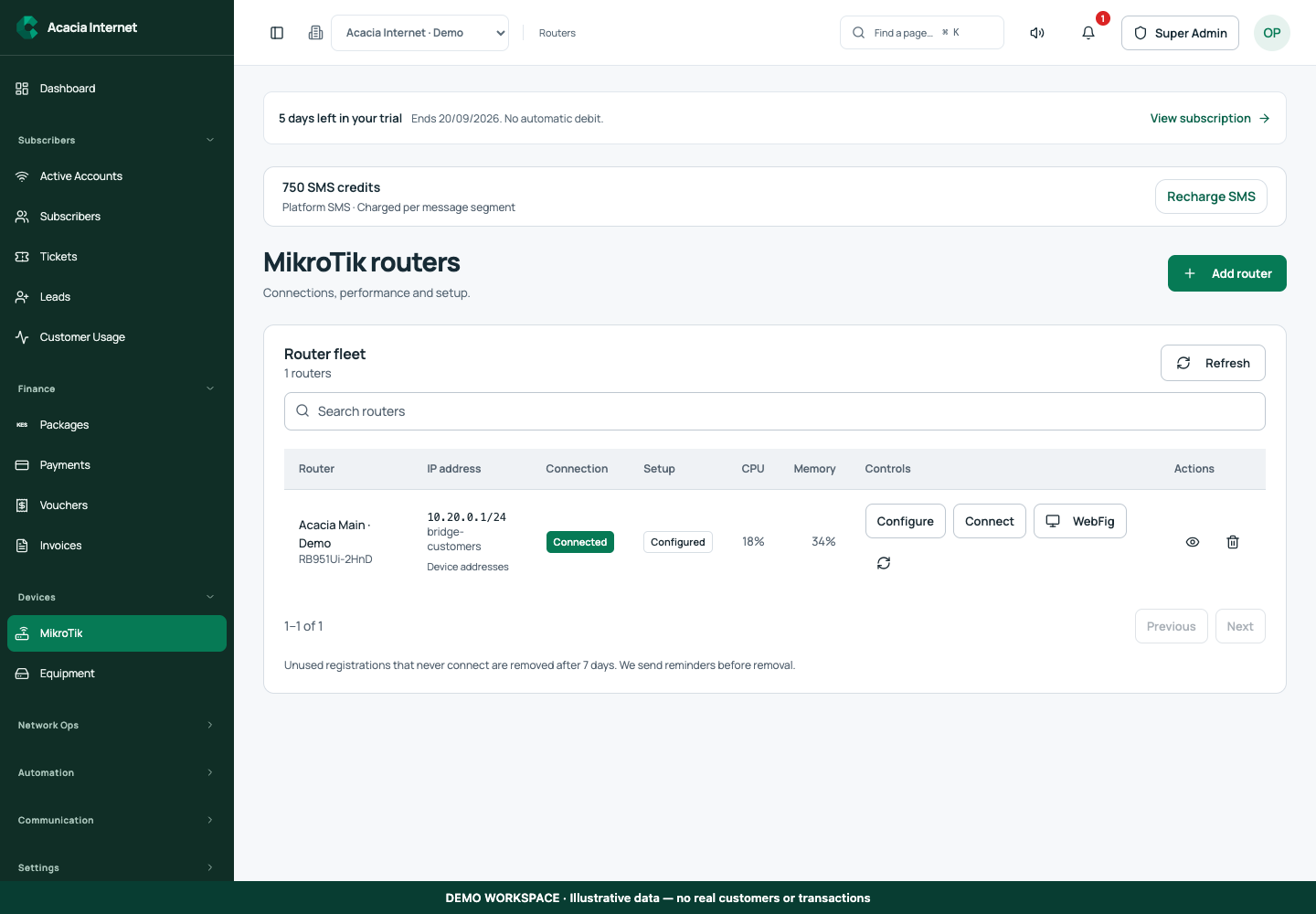
Open the fleet and find the device by identity. Review its connection status and setup status as separate columns. A configured router can lose connectivity, and a connected router can still have incomplete setup. CPU and memory are observations from the device, not permanent capacity guarantees. Open the router details when you need the timestamp and context behind a value.
2. Understand the displayed IP address
An address shown in inventory may be a private interface address, a reported public address or an observed registration reference, depending on the field. None automatically proves that WebFig is reachable from the internet. If the view says an address was not recorded, refresh inventory and inspect the last successful agent report. Do not replace missing evidence with a guessed address simply to fill the table.
3. Run a targeted diagnostic
Use the router’s diagnostics controls, choose the supported test and supply the target if required. Review the request, then apply it and wait for the result. Latency, packet loss, interface counters and route observations answer different questions. Test the customer path and the upstream connection separately when possible. A test that has been queued has not yet returned a measurement.
4. Maintain outage notification recipients
Open Outages & Hotspot recovery and review the saved owner email and SMS contacts. Use the recipient controls to add or update the people responsible for that site. Check the spelling, country code and available SMS balance. Notifications begin when a missing heartbeat is detected; this is monitoring with a detection interval, not an instantaneous electrical sensor for an unplugged cable.
5. Open WebFig through the verified access flow
Use WebFig where the router has a verified management transport. Request the code, read it from the administrator’s verified email and enter it before expiry. The interface describes a private, time-limited session. A queued OTP is not proof of inbox delivery. Never forward the code or a session link to a customer, and close the session when the maintenance task is complete.
6. Confirm recovery after an outage
When the router returns, refresh its heartbeat and inspect the outage record and recovery state. Eligible unused Hotspot time is handled by the recovery workflow; verify the affected customer’s resulting expiry and service evidence. Test a client connection after a significant outage. An online notification confirms observed reconnection, while the customer test confirms the service path actually works.
Confirm the result
You should have recent inventory, a clear diagnostic result or explicit pending state, working alert contacts and an accessible recovery record when an outage occurs. Keep management access restricted to staff who need it. Test alert delivery periodically using an approved maintenance exercise instead of discovering an incorrect contact during a real fault.
Questions and troubleshooting
Why is a diagnostic still pending? The router may be offline, busy or awaiting a compatible agent operation. Check recent operations and device activity. Why did the OTP not arrive? Check the verified address, mail delivery status and expiry before requesting a new one. Does an OVPN reference create a tunnel? No. Saved metadata alone is not a verified transport; use the managed access setup and its readiness checks.
Continue with the next task
Continue with router maintenance and backups and customer notifications.
This guide describes the application reviewed on 15 September 2026. If a screen displays a warning, follow that specific message before continuing. For support, include the workspace, affected record, time of the attempt and the operation reference where available. Never include passwords, router command tokens, payment secrets or verification codes in a public support message.