The captive portal is often the first screen a Hotspot customer sees. It must load before full internet access, make the offer easy to understand and provide a working sign-in or payment path. Hotspot Studio provides a preview and draft workflow, but the final test must happen on a real customer connection.
Before you start
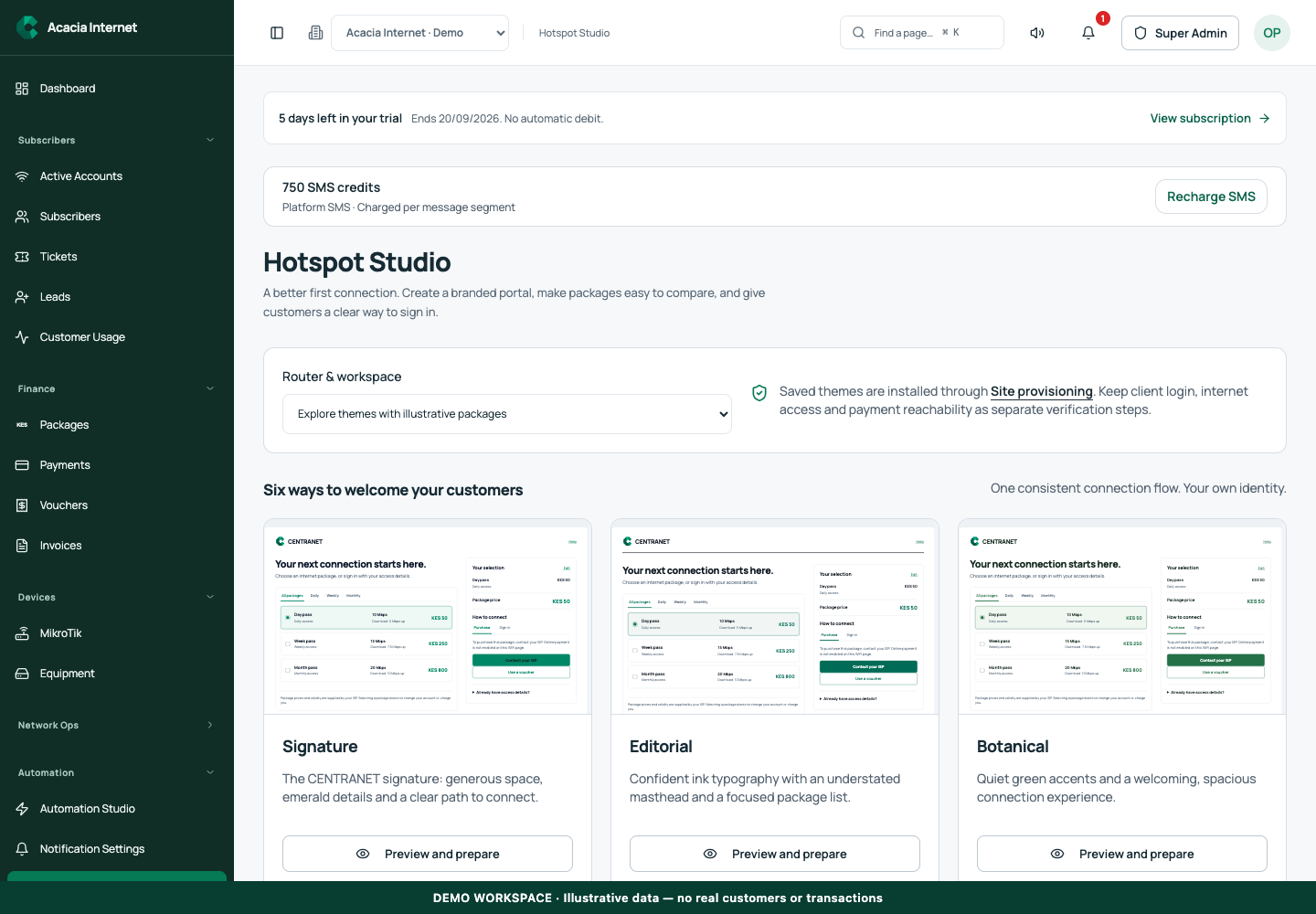
Open /hotspot-studio in the workspace you intend to manage. The workspace name determines which routers, subscribers and records you can see. These screenshots use Acacia Internet, a fictional training workspace. Names, phone numbers, addresses, account counts and money shown are demonstration data; do not copy them into a live customer record. Your available controls depend on your role, plan and configured integrations.
1. Choose the intended router and theme
Open Hotspot Studio and select the router context where applicable. Review the available themes and choose Preview and prepare. The themes share a connection flow while offering different visual treatments. A local preview without a router may show illustrative packages; those examples are not automatically published offers and should not be mistaken for a live catalogue.
2. Customize the brand and support information
Enter the brand name, support phone, email and hours in the branding controls. Upload a supported logo; the Studio explains its file types and size limit and embeds a resized asset for use before internet access. Keep support wording concise. Customers need a clear way to connect or get help, not an explanation of internal provisioning architecture.
3. Review customer portal and paid-checkout options
The customer-portal link and paid Hotspot checkout are deliberate options. Read their prerequisites before enabling them. Required portal, authentication and payment destinations must be reachable before sign-in. Paid checkout uses explicitly published Hotspot packages and requires verified payment plus router acknowledgement before access. Selecting a package in a preview does not create a real charge.
4. Check desktop and mobile previews
Use Fit preview and Mobile to inspect the layout. Review login.html, status.html, logout.html and error.html where offered. Check that the package names, prices, support details and buttons remain readable on a narrow screen. The isolated preview blocks real outbound requests, so it is suitable for visual review but cannot establish that a live payment or login succeeds.
5. Save or export the reviewed draft
Apply branding to the draft and use the supported save or export action. Pay attention to the Unsaved changes indicator. If working from a saved draft, confirm the router and theme before replacing anything. Keep a recoverable copy of a known working portal. Visual editing and installing the files on the router are distinct steps in the workflow.
6. Install through the router workflow and test before login
Use the supported router installation path for the prepared portal. Connect a test phone through the actual access point and customer interface. Confirm the captive page opens without requesting an unnecessary email address, the intended package is visible and voucher or paid checkout works. Verify that successful access results in real browsing and that logout and error states remain useful.
Confirm the result
Check the portal on at least one phone and one other browser size. Confirm the customer-facing brand, package availability and support path. Keep technical configuration details in the admin workspace. A portal that looks correct in Studio but fails before authentication needs reachability or installation investigation, not more styling changes.
Questions and troubleshooting
Why is a package missing? Check that it is an active, explicitly published Hotspot package available on the router. Why does the preview not take payment? It is intentionally isolated. Why does the captive page show a connection error? Verify DNS, HTTPS and pre-authentication access to the portal and payment destinations. Does changing the theme update every router? Review the router-specific save and installation actions; do not assume a draft has been deployed fleet-wide.
Continue with the next task
Continue with package publication and voucher redemption.
This guide describes the application reviewed on 15 September 2026. If a screen displays a warning, follow that specific message before continuing. For support, include the workspace, affected record, time of the attempt and the operation reference where available. Never include passwords, router command tokens, payment secrets or verification codes in a public support message.