Payouts transfer eligible proceeds from platform collections to your approved destination. A good payout setup answers three questions: who receives the money, how much is eligible and what happened to the most recent disbursement. This guide uses illustrative examples and does not quote a current provider tariff.
Before you start
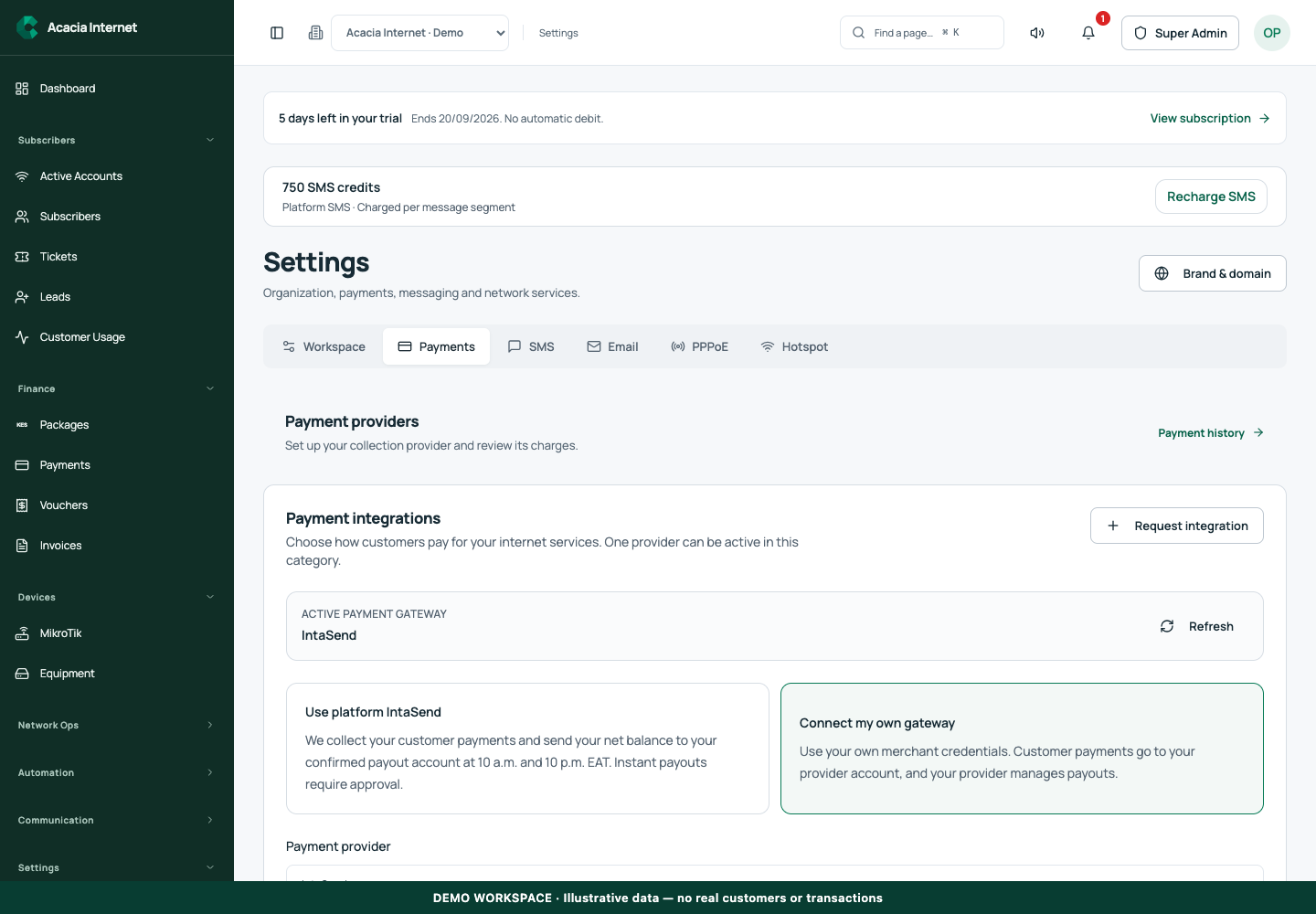
Open /settings?tab=payments in the workspace you intend to manage. The workspace name determines which routers, subscribers and records you can see. These screenshots use Acacia Internet, a fictional training workspace. Names, phone numbers, addresses, account counts and money shown are demonstration data; do not copy them into a live customer record. Your available controls depend on your role, plan and configured integrations.
1. Confirm you are using platform collections
Open payment settings and review the active collection mode. The platform payout ledger applies to collections handled under the platform arrangement. If customers pay through your own independently configured gateway, that provider controls its settlement process. Do not expect those collections to appear as money the platform can disburse a second time.
2. Enter a supported destination
Choose a payout option actually offered by the settings screen and enter the account or phone details carefully. Provider support varies by destination type, so follow the available fields rather than assuming every bank or mobile-money account can be used. Keep the payout contact reachable for verification and changes. Never put a payment PIN into a payout account field.
3. Verify the recipient before accepting it
Use the verification step offered for the selected destination. If the provider returns a recipient name, compare it with the intended account holder before confirming. Do not treat a typed name as equivalent to provider-verified ownership. If verification is unavailable or fails, resolve the destination requirement before requesting a disbursement.
4. Read available and pending amounts correctly
Review the eligible balance, pending payouts and last completed payout. In a fictional example, KES 10,000 collected does not automatically mean KES 10,000 available: saved fees, existing disbursements and holds can change eligibility. Use the recorded terms and transaction detail. A calculator estimate is explanatory and does not itself create a collection or a payout.
5. Follow the scheduled payout record
Review the schedule and next payout information displayed by the application. Scheduled runs operate against eligible funds and a verified destination. An upcoming record is not a completed transfer. After the run, inspect the provider reference and final status. If a payout remains pending, investigate that record before creating another request for the same funds.
6. Request an instant payout when offered
Use the instant request option against eligible pending funds. Review the amount and submit the request once. The designated superadmin reviews the request, and approval must be followed by the provider disbursement result. Approval and successful transfer are separate stages. Track the request in the workspace and check the confirmation notice for the final outcome.
Confirm the result
Before relying on automatic disbursement, confirm the saved recipient, verification state, schedule and notification contacts. After a payout, match its provider reference and amount to the receiving account. Retain declined, failed and pending requests as part of the audit trail instead of hiding them to make the balance look simpler.
Questions and troubleshooting
Why can’t I request my gross collections? Only eligible net funds can be paid out under the saved terms. Does approval mean the account has received money? No; inspect the disbursement result. Can I change the destination while a payout is pending? Review the specific pending record and account-change rules before editing. Why is a name lookup absent? It depends on the provider and destination capability; do not assume ownership verification happened silently.
Continue with the next task
Next read collection gateway selection and dashboard financial interpretation.
This guide describes the application reviewed on 15 September 2026. If a screen displays a warning, follow that specific message before continuing. For support, include the workspace, affected record, time of the attempt and the operation reference where available. Never include passwords, router command tokens, payment secrets or verification codes in a public support message.