The dashboard is your starting point for daily operations. It brings together collections, subscribers, routers and open work, but each number answers a different question. This guide uses fictional amounts to show how to compare periods without confusing customer collections with your available payout balance.
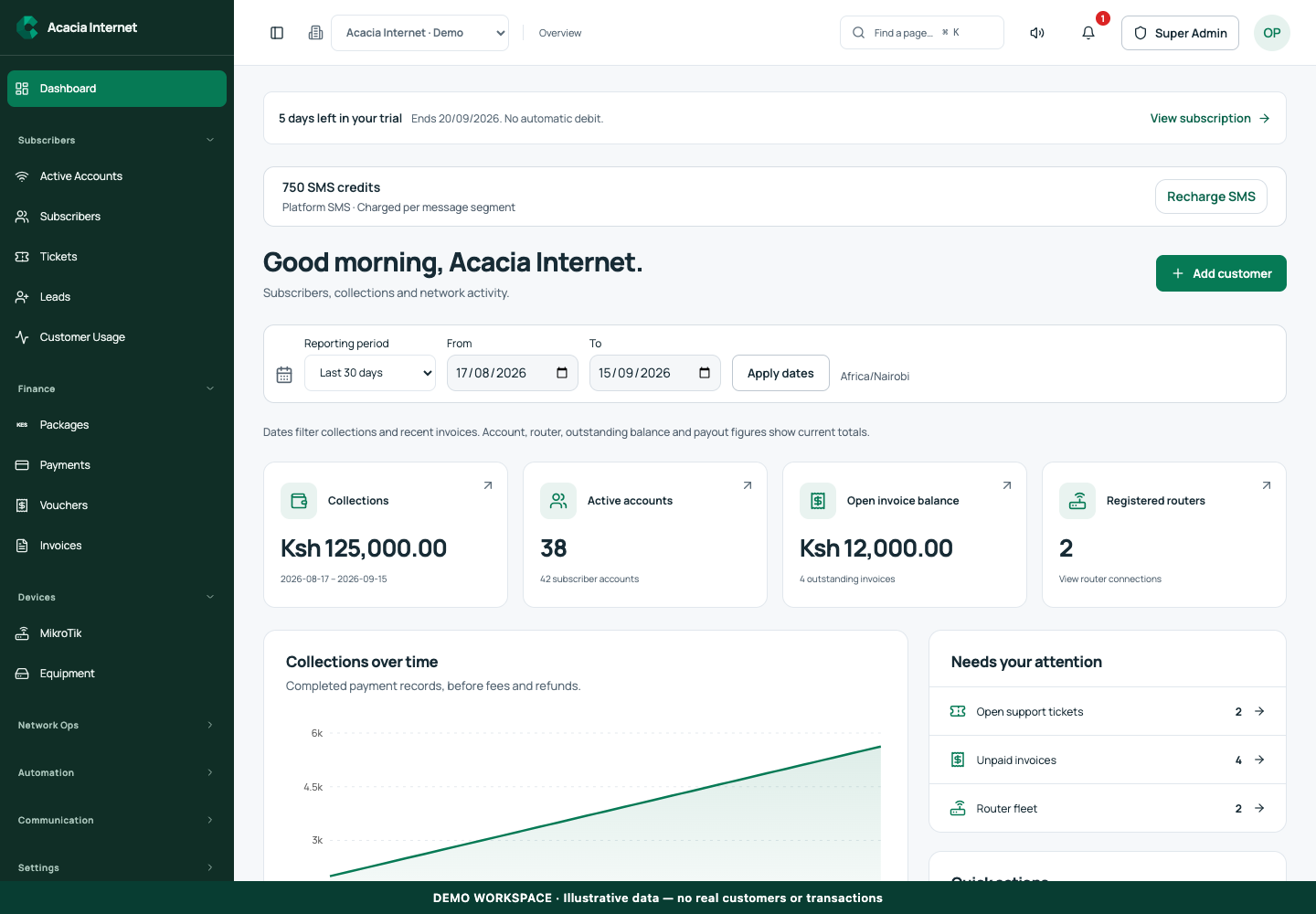
Before you start
Open /dashboard in the workspace you intend to manage. The workspace name determines which routers, subscribers and records you can see. These screenshots use Acacia Internet, a fictional training workspace. Names, phone numbers, addresses, account counts and money shown are demonstration data; do not copy them into a live customer record. Your available controls depend on your role, plan and configured integrations.
1. Confirm the workspace and reporting dates
Check the workspace name before interpreting any card. Set the reporting range using the date controls and note the timezone shown. Compare equal periods when assessing growth: a seven-day period should not be judged against a thirty-day total without accounting for the difference. Choose Apply dates after entering a custom range. Dates filter collections and recent invoices; account, router, outstanding-balance and payout figures show current totals. Allow the cards and chart to finish loading before taking a screenshot or reporting results.
2. Interpret collections as a period total
Collections represent payment records included in the selected reporting period. In the demonstration, KES 125,000 is an invented training amount, not CENTRANET revenue. A collection total is different from invoiced revenue, unpaid invoices and the amount eligible for disbursement. Open Payment history when you need the underlying references instead of treating a chart column as a bank reconciliation.
3. Review unpaid invoices separately
The outstanding invoice balance shows work still to reconcile or collect. Our demonstration uses KES 12,000 of open invoices. Do not add this amount to collections and call the result cash received. Open each invoice to inspect its customer, total and status. A sent invoice means the customer was billed; payment verification and invoice reconciliation determine whether it is paid.
4. Use subscriber and router counts as operational signals
Compare active accounts with the total subscriber count. Suspended, pending and expired accounts can explain the difference. Router totals are inventory counts, not a promise that every device is currently reachable. Open the router fleet to inspect recent heartbeat and setup status. A device can have completed setup while its latest connection is offline; those are separate facts.
5. Check SMS credits before scheduled communication
Read the SMS balance strip and identify whether it represents platform credits or a configured external provider. Choose Recharge SMS or Manage SMS as offered. Message segments, rather than only recipients, affect consumption. If the balance is waiting for a provider refresh, use the indicated source and timestamp before promising a campaign can reach every contact.
6. Refresh and investigate a discrepancy
Use Refresh after completing a payment or customer change. If a refresh fails, the screen may retain the previous snapshot with a warning; record its timestamp and do not treat it as current. Follow a linked invoice, payment or customer record to investigate. For a financial discrepancy, compare the same workspace, dates, currency and payment reference in both views.
Confirm the result
A useful daily review ends with a short action list: unpaid invoices to follow up, accounts awaiting service confirmation, routers needing attention and communication credits to replenish. Save the chosen date range with any exported or emailed figures. Label internal examples as illustrative so they cannot be mistaken for accounts supplied to a customer or accountant.
Questions and troubleshooting
Why did a number change after refresh? The underlying records or date range may have changed. Check the last successful snapshot and transaction timestamps. Is collected revenue the payout amount? No. Fees, eligibility, completed disbursements and holds can affect the payout ledger. Does zero mean nothing happened? Only within the selected scope and available records. An error or incomplete integration must be investigated rather than interpreted as zero activity.
Continue with the next task
Continue with payment reconciliation and subscription allowances.
This guide describes the application reviewed on 15 September 2026. If a screen displays a warning, follow that specific message before continuing. For support, include the workspace, affected record, time of the attempt and the operation reference where available. Never include passwords, router command tokens, payment secrets or verification codes in a public support message.