Hotspot accounts can be created through a customer checkout journey as well as administrative operations. Their names may be less familiar than household PPPoE customers, so use service, router, username and payment context together when selecting an account. Bulk operations are powerful when the selection is precise.
Before you start
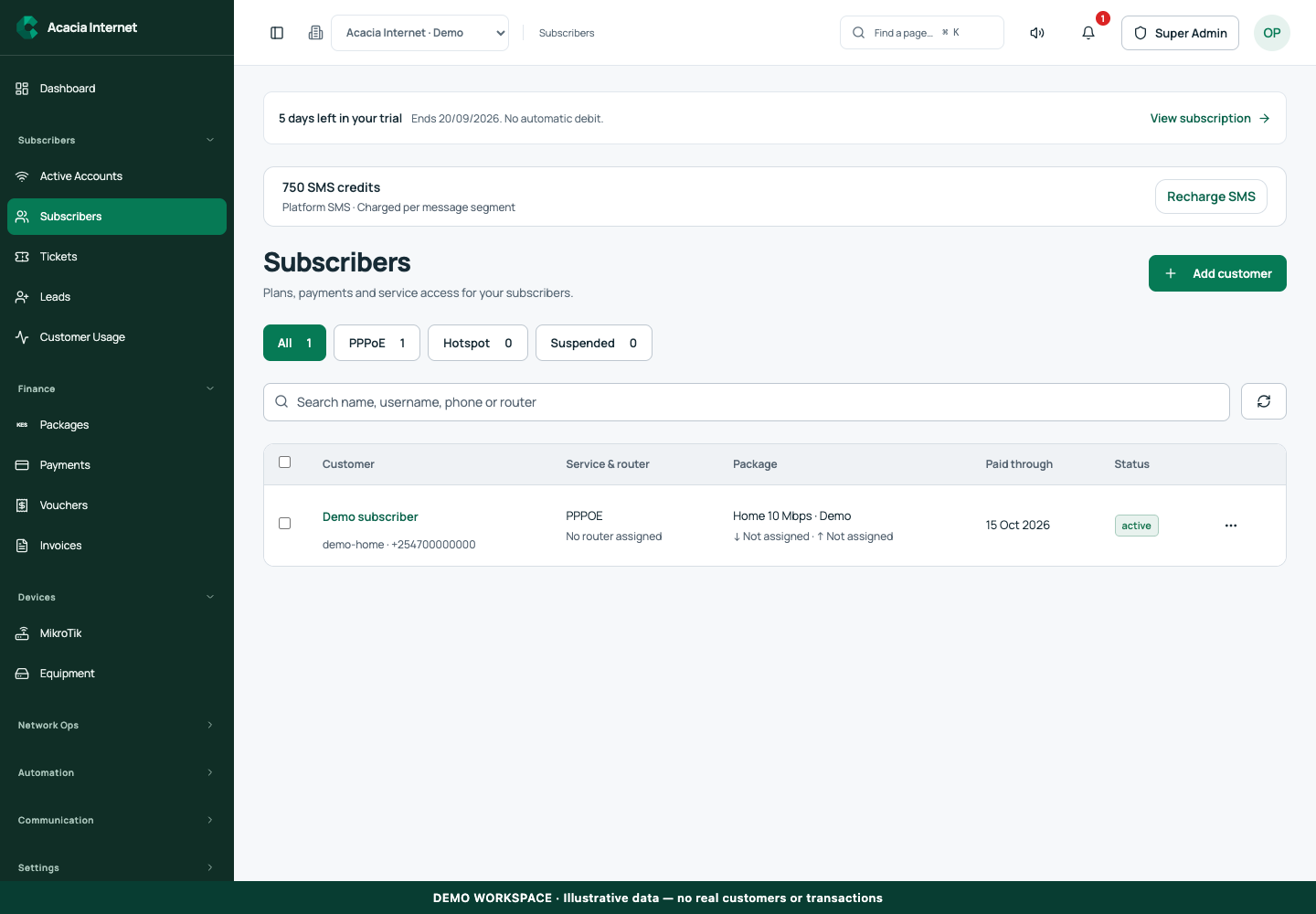
Open /users in the workspace you intend to manage. The workspace name determines which routers, subscribers and records you can see. These screenshots use Acacia Internet, a fictional training workspace. Names, phone numbers, addresses, account counts and money shown are demonstration data; do not copy them into a live customer record. Your available controls depend on your role, plan and configured integrations.
1. Filter to the right service and site
Open Subscribers and choose the Hotspot filter. Search by name, username, phone or router to narrow the list further. Read the Service & router column before choosing an action. Similar guest labels can represent different sessions or accounts, so the displayed customer name alone is not a reliable way to identify the intended record.
2. Inspect the account before changing it
Open the customer record and review the package, paid-through date, status and service evidence. If a payment is involved, compare the original payment reference with the account. A pending activation may mean a verified payment is waiting for router acknowledgement. Creating another guest account or charging again can make that situation harder to reconcile.
3. Select a deliberate bulk set
Use the row checkboxes or the visible-row selection control. Check the number selected and the service/router scope before confirming. A visible selection is not a promise that every customer across all pages is included. If you need to process another page or filtered group, review it separately. Keep a record of larger administrative batches for your support team.
4. Synchronize or suspend with confirmation
Choose the appropriate supported action for the selected customers. Synchronization requests the current desired service state on the router. Suspension changes the requested access state and must be confirmed by the device. The interface can report that an action was saved before all network work completes. Inspect individual results and the latest service evidence rather than assuming a successful request means every device has already changed.
5. Delete obsolete accounts through the retention workflow
Use Delete only for records you intend to remove from normal subscriber operations. The confirmation explains that the subscriber is removed and service suspended while receipts and payment history are retained. This avoids breaking financial references. Review the customer identity and router before confirming, especially when multiple guest accounts share a phone number.
6. Handle partial failures without repeating successful work
Read the per-customer outcome after a bulk operation. Investigate failed rows, preserve their references and refresh their details. Do not recreate accounts or repeat every successful action merely because one row failed. A router that is offline can leave service work pending; allow it to reconnect and inspect the existing operation before submitting another conflicting change.
Confirm the result
Refresh the filtered subscriber list and inspect a sample of changed records, including every failed or pending item. For a suspension or deletion, verify router removal or disabled access through the recorded service evidence. Retained payments should still be available for reconciliation even when the customer is no longer shown in the active subscriber list.
Questions and troubleshooting
Why do two Hotspot guests look similar? They may be separate accounts or purchase attempts; compare identifiers and references. Will deletion erase receipts? The workflow retains financial history. Why is suspension not immediate? The router must receive and confirm the requested change. Should I delete an account after an outage? First inspect its recovery and remaining-time state; deletion is not an outage recovery action.
Continue with the next task
Next read voucher creation and redemption and router outage monitoring.
This guide describes the application reviewed on 15 September 2026. If a screen displays a warning, follow that specific message before continuing. For support, include the workspace, affected record, time of the attempt and the operation reference where available. Never include passwords, router command tokens, payment secrets or verification codes in a public support message.