A manual receipt is for money already received outside the normal online checkout flow. It must create an auditable financial record and the appropriate service consequence. It is not a shortcut for granting free access or replacing a payment whose status is still uncertain. The examples here use fictional amounts.
Before you start
Open /payments in the workspace you intend to manage. The workspace name determines which routers, subscribers and records you can see. These screenshots use Acacia Internet, a fictional training workspace. Names, phone numbers, addresses, account counts and money shown are demonstration data; do not copy them into a live customer record. Your available controls depend on your role, plan and configured integrations.
1. Confirm that money was actually received
Before opening the recording action, identify the customer, amount, payment method, original reference and receipt time. For a fictional KES 2,500 offline payment, retain the original transaction or cash receipt reference. If you only have a pending mobile-money request, finish reconciling that attempt instead. A promise to pay is not the same as a completed receipt.
2. Open the customer or invoice context
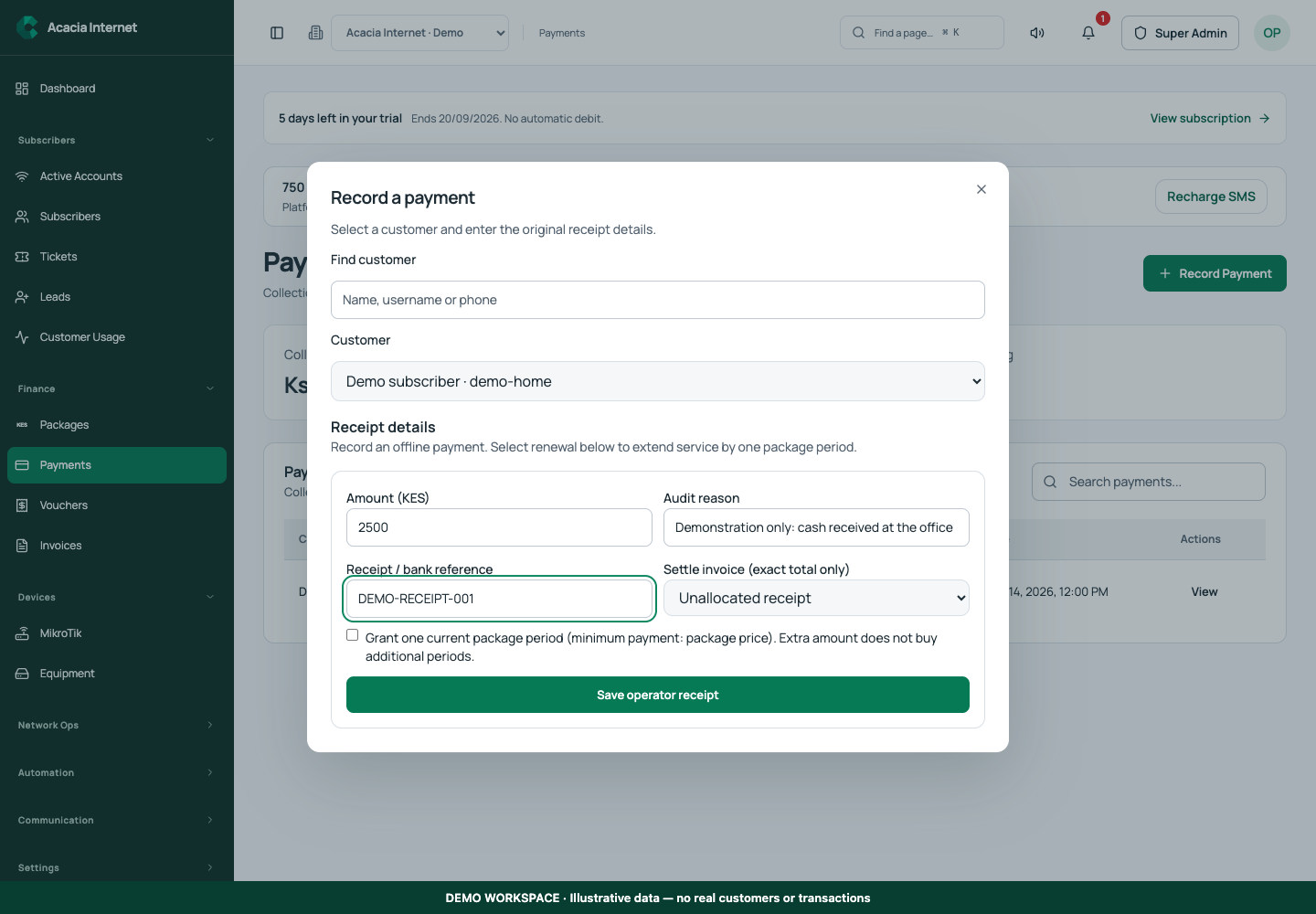
Open Payments → Record Payment. Use Find customer, then choose the correct entry in Customer. Check the workspace, customer identity and package before entering money. Similar names are not enough to identify the account. If the receipt is intended for an existing invoice, confirm its outstanding amount and status so you do not apply the same money to a second obligation.
3. Enter the actual amount and original reference
Enter Amount (KES), Audit reason and Receipt / bank reference using the original evidence. Use Settle invoice (exact total only) for an eligible exact invoice amount, or retain an unallocated receipt when that is the intended accounting treatment. Keep the amount, method and date consistent with the real receipt. Use the original reference rather than an invented online gateway reference. Add a concise reconciliation note if the workflow provides one, explaining the reason for manual entry without including private payment credentials.
4. Review the effect before confirming
Review Grant one current package period separately from recording money. This option requires at least the current package price; extra money does not purchase additional periods. Leave it unchecked when the receipt should not renew service, then choose Save operator receipt once the details are correct. Check whether the customer is receiving the intended package or paid-through period. A receipt and an account status edit serve different purposes. Only a verified, auditable ledger workflow should be used to connect offline money to internet access.
5. Verify the ledger entry and receipt outcome
After saving, refresh the payment and invoice records. Confirm the amount and reference appear once and that the invoice balance changed as expected. If the interface reports uncertain acceptance, inspect the existing attempt before trying again. Duplicate manual entries can overstate revenue and grant more service than the customer purchased.
6. Check router-confirmed service separately
Open the subscriber service evidence after the financial record is confirmed. A renewal can be recorded while its router action is still waiting. If internet access is not restored, inspect the router connection and operation status. Do not create another receipt to force the device to reconnect; that would mix a technical problem with an additional financial event.
Confirm the result
Keep a trace from the original evidence to the saved receipt, invoice and customer service result. The payment should be recorded once, with the correct amount and account. If the manual recording action is unavailable in your workspace, preserve the original reference and use the finance reconciliation process rather than changing dates or initiating a replacement charge.
Questions and troubleshooting
Why does the screen say manual recording is unavailable? The required ledger workflow or permission may not be ready. Follow the warning and ask the finance administrator to reconcile. Can I use a manual receipt to test activation? Only with a properly authorized test and truthful accounting treatment; never invent received money. What if I entered the wrong amount? Preserve the audit trail and use the supported correction process, not deletion of financial history.
Continue with the next task
Next read payment history reconciliation and subscriber setup.
This guide describes the application reviewed on 15 September 2026. If a screen displays a warning, follow that specific message before continuing. For support, include the workspace, affected record, time of the attempt and the operation reference where available. Never include passwords, router command tokens, payment secrets or verification codes in a public support message.