MikroTik configuration
MikroTik Billing Software for ISPs
MikroTik billing software connects your commercial rules to the equipment delivering internet. The platform tracks subscriptions and confirmed payments; RouterOS enforces the network access those records authorize. Centranet helps operators enroll routers, review customer networks and manage Hotspot and PPPoE services from a central workspace. This guide explains the separation between billing and router enforcement, and how to set up a network you can support confidently.
01
Understand the platform and router responsibilities
The billing platform owns customer records, packages, invoices and payment history. The MikroTik owns forwarding, authentication and the service configuration on that device. Successful operations require those two views to agree. A package saved in the dashboard is not proof that its router profile was applied, just as a connected router is not proof that a customer has a paid subscription.
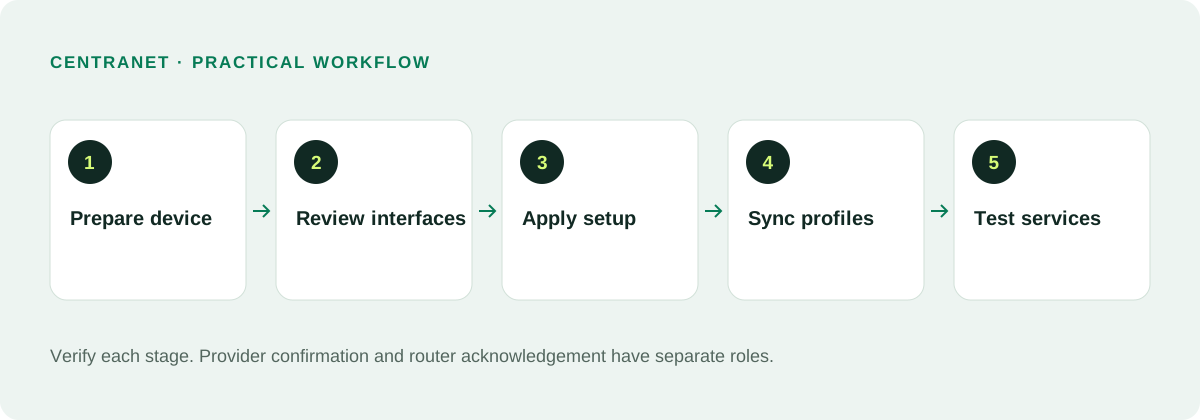
Think of a renewal as a short workflow: confirm the payment, allocate the entitlement, send the required service change and observe the result. When troubleshooting, identify which step failed. This avoids changing firewall rules to solve a billing issue or manually crediting an account whose money never arrived.
02
Choose a router for the workload
Select hardware based on your expected concurrent sessions, uplink speed, firewall and queue workload, and the ports required at the site. Router model labels alone are insufficient: a complicated configuration may consume more CPU than a simple one carrying similar traffic. Use manufacturer specifications and a realistic site test before committing to a large rollout.
Plan power protection and physical access as well. A router that repeatedly loses electricity creates billing complaints even when software is working correctly. Label WAN and customer cables, document any downstream switch and avoid sharing the administrator password with installers who only need limited setup access.
03
Prepare clean onboarding safely
For Centranet’s clean setup, use RouterOS 7.20+, a clean hard reset with no previous configuration and a working internet connection. A production device must be backed up before reset. Record how to restore upstream connectivity if the site is already serving customers. The recommended clean approach is easiest to validate on a spare or new device.
A router with unknown bridges, DHCP servers, NAT rules or authentication profiles can produce ambiguous assignments. Do not assume automation can safely infer every historical change. Review the detected internet interface and protected interfaces in onboarding, and pause if they do not match the physical cabling.
04
Enroll and review the customer networks
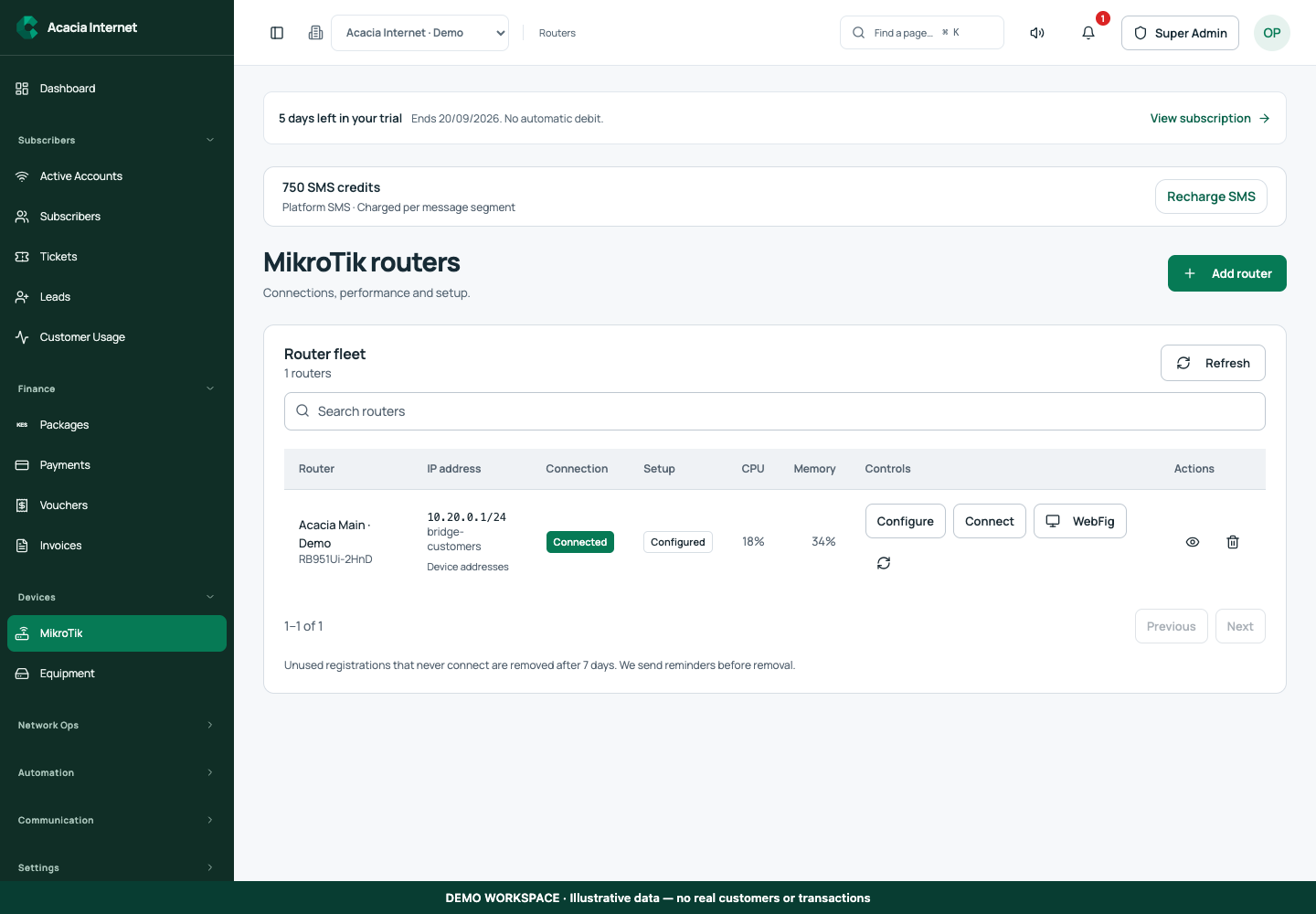
Create the router record in the correct workspace, then paste the generated command into the device as instructed. Treat enrollment commands as credentials: do not share them publicly. Watch the setup progress and wait for verified stages. If a stage stops, inspect its status and recovery instructions before generating or repeating configuration.
Review which ports will serve Hotspot and PPPoE customers. Protect the upstream internet interface and any management connection. The proposed customer address pools should not overlap existing routed networks. Verify the router identity and site name so future staff do not apply customer changes to the wrong hardware.
05
Turn packages into enforceable profiles
A service package needs a price, duration, download speed, upload speed and a service type. Its router assignment determines where it can be used. A profile synchronization connects the commercial package to the RouterOS service configuration. Check both the dashboard result and a sample customer session after a change.
Use simple, consistent naming across sites. If a package is available on only one router, assign that router rather than advertising it everywhere. When changing a popular profile, decide how existing subscriptions should behave and test on a small group. Avoid an unreviewed change that reduces bandwidth for the entire subscriber base.
06
Keep PPPoE and Hotspot behavior distinct
PPPoE is commonly used to authenticate a fixed subscriber connection from customer equipment. Hotspot serves a browser-led login or purchase experience for Wi-Fi users. RouterOS supports these service types, but their customer journeys differ. A PPPoE subscriber needs correct connection credentials; a Hotspot guest needs a reachable captive page and an active session entitlement.
A mixed network can offer both, provided customer interfaces, address pools and package assignments are intentional. Test whether the upstream and customer network separation works. Check that no unintended DHCP server competes on a customer segment and that a Hotspot guest cannot access private management interfaces.
07
Monitor heartbeat, inventory and actual service
A heartbeat means the router agent has reported to the system. Inventory can show model, addresses and resource usage when collected. Active sessions tell a different story: they indicate which customers are authenticated. Keep these signals separate when deciding whether the site is healthy. A router can be reporting while its upstream connection is impaired.
If an address is missing, check whether the agent has collected that inventory and whether the router’s management path is registered. A private address is not automatically reachable from the public internet. Remote management needs a verified secure transport; merely saving a WebFig URL or RoMON reference does not create one.
08
Use secure remote management
Do not expose RouterOS administrative services to the whole internet just to obtain browser access. Restrict management to trusted paths, use strong unique credentials and keep RouterOS updated. Where a private management gateway is configured, verify its connection independently from the outbound polling agent. Outbound reporting and inbound interactive administration are separate capabilities.
Centranet’s secure access workflows should preserve authorization and short-lived session controls. A support technician should never ask a subscriber for an owner verification code. Audit privileged changes and retain a known-good backup. If remote access fails, distinguish an unavailable gateway from an offline router before making changes.
09
Troubleshoot from the least disruptive step
For paid customers without access, start with the payment and entitlement. Next check router assignment, package synchronization and service-change status. Then inspect the active session and the customer’s equipment. Only after those checks should you change network configuration. This order reduces unnecessary resets and protects users who are already online.
For router setup errors, read the full error rather than guessing from a red log topic. Preserve the device journal and generated setup status. Repeated commands can create duplicate rules or make recovery harder. Use the documented refresh or restore path and test connectivity after recovery.
- Payment confirmed and allocated to the intended customer
- Correct router and package assigned
- Router online and service change acknowledged
- Customer credentials, cable and session checked
10
Maintain the fleet with controlled changes
Schedule backups, track router versions and review differences before significant changes. For upgrades, test a representative site first, check device storage and arrange a rollback plan. Avoid upgrading every production router simultaneously. Maintenance quality matters more than the number of controls displayed in a dashboard.
Build a site record with upstream details, protected interfaces, customer network ranges, owner alerts and support responsibility. Keep backups and credentials protected. When a router is retired, reconcile its customers and recovery work before deletion. A clean fleet reduces support time and makes the next installation much easier.
Related documentation and next steps
Use current product information and original provider documentation when planning your deployment.
Good questions. Clear answers.
Let’s clear
a few things up.
A little clarity goes a long way.
Ask us something elseDoes billing software replace RouterOS?
No. Centranet manages commercial and operational records while RouterOS provides network services and enforces the applied configuration.
Can a router heartbeat give me WebFig access?
No. Outbound reporting does not establish an authenticated inbound management transport. Secure remote access needs a reachable verified management path.
Should I reset my live router immediately?
Back up first and plan the interruption. Clean setup is intended for a clean device; test on spare hardware when possible.